Modding the Pixel Stand Gen 2 for Maximum Cooling (and Why the App is Pixel-Only)
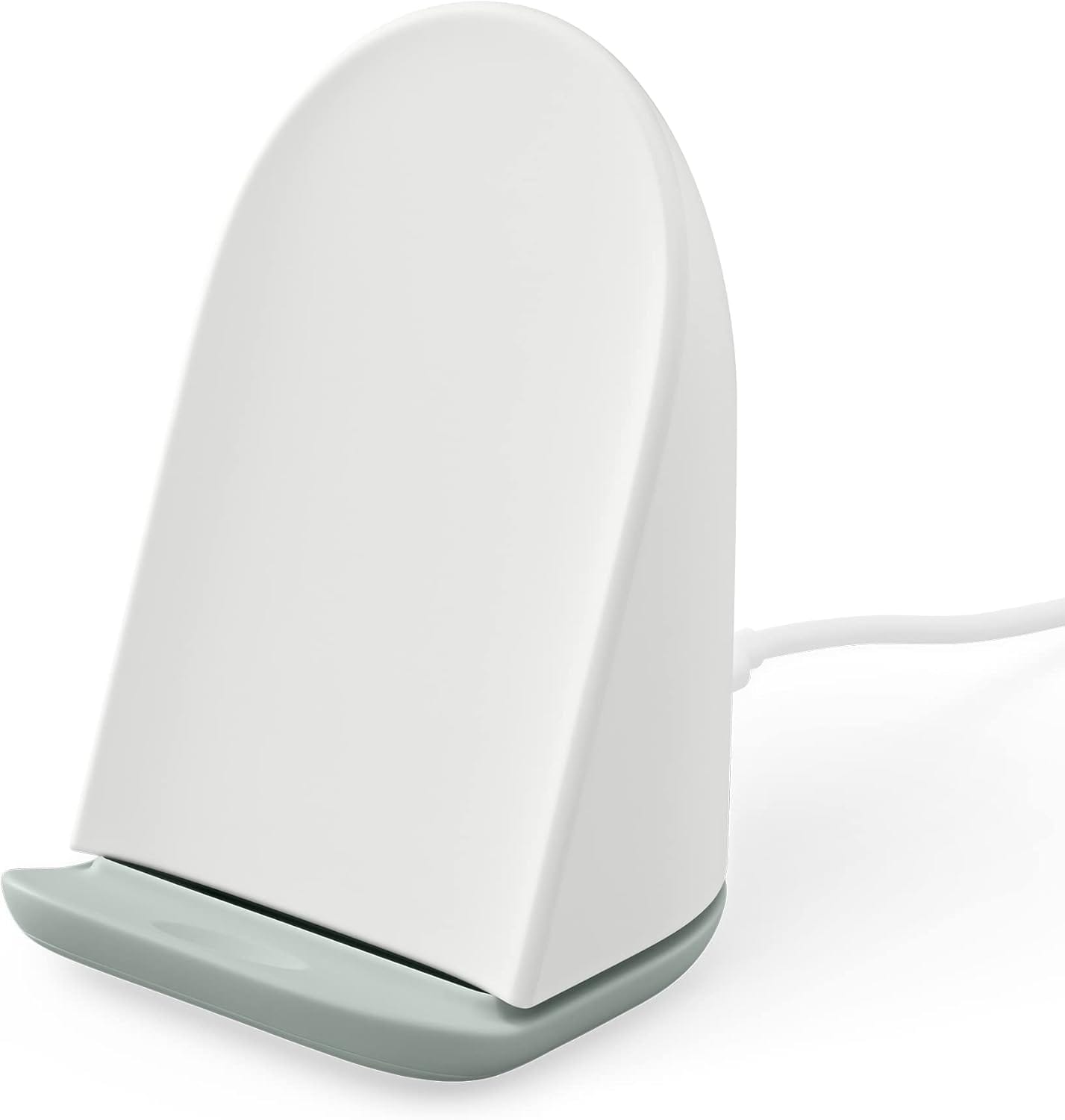
Recently, I ran into a limitation with the Google Pixel Stand Gen 2. When using it to charge non-Pixel devices, the built-in cooling fan barely spins up. If you want maximum cooling for your phone during wireless charging, you have to bypass the software control entirely.
Here is a simple, practical guide on how to hardwire the fan to run at 100% speed, along with a quick look at why you cannot just use the official app to fix the problem.
The Hardware Mod: Forcing 100% Fan Speed
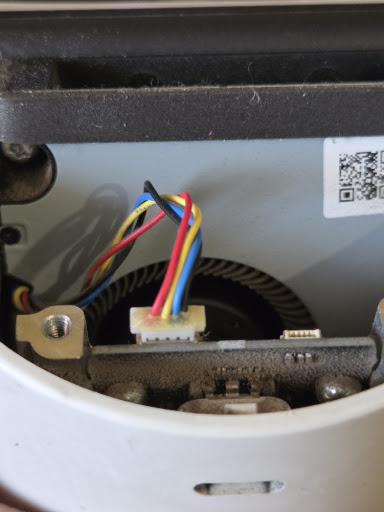
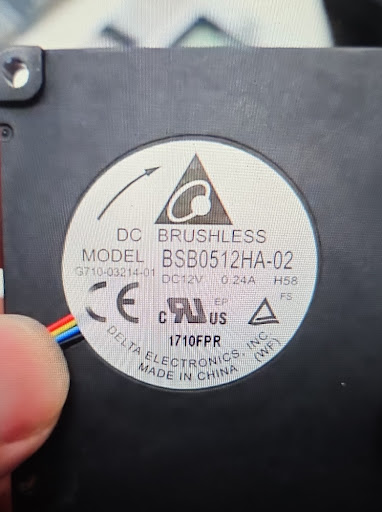
The Pixel Stand Gen 2 uses a standard 12V Delta blower fan (model BSB0512HA-02) with a 4-wire PWM connection. The wires follow the standard industry color coding:
- Black: Ground
- Red: 12V Power
- Yellow: Tachometer (Speed Sensor)
- Blue: PWM Control Signal
By design, if a PWM fan loses its control signal, it defaults to running at maximum speed as a built-in hardware failsafe. To get 100% fan speed, you just need to disconnect the blue wire.
Method 1: The Clean Way (Depinning)
This is the recommended route. It does not permanently damage the hardware, allowing you to reverse the mod later if you want to sell the stand or go back to stock.
- Unplug the charging stand completely.
- Open the casing and disconnect the white 4-pin fan connector from the internal motherboard.
- Carefully lift the tiny retaining tab on the plastic housing just above the blue wire using a needle or a precision craft knife.
- Gently slide the blue wire and its metal pin out of the housing.
- Wrap the exposed metal pin securely in electrical tape to prevent it from shorting out against the motherboard.
- Plug the connector back into the board with the remaining three wires intact.
Method 2: The Quick Way (Cutting)
If you do not care about reversing the process and just want it done fast, you can simply cut the wire.
- Unplug the charging stand completely.
- Open the casing and locate the 4-wire bundle going to the fan.
- Using a small pair of wire cutters or snips, cut the blue wire in half.
- Important: Wrap both of the newly cut ends in electrical tape. You do not want the exposed wire touching anything else on the circuit board.
With either method, whenever the stand supplies power to the fan header, the fan will immediately ramp up to full speed. The fan will still turn off completely when the stand is empty and stops supplying power.
Why the Pixel Stand App is Locked to Pixels
You might wonder if you can just sideload the Pixel Stand app onto another Android device to control the fan via software. Unfortunately, this does not work. The app is deeply integrated into Google's specific Android system framework and relies on proprietary lock screen architecture.
More importantly, the stand does not use Bluetooth or Wi-Fi to communicate with the phone. It uses in-band communication directly over the Qi wireless charging coils. The charger sends a proprietary digital signature through the magnetic field using rapid frequency and amplitude adjustments.
The hardware inside a Pixel phone is programmed to detect this exact signature, which then triggers the operating system to wake up the hidden stand features. Non-Pixel devices simply ignore these proprietary data packets and treat the stand like a standard, "dumb" wireless charger. Because of this hardware-level handshake, modifying the physical fan connection is the only way to get maximum cooling for other devices.